Most PUBG Mobile players have faced a situation where UC payment simply doesn’t go through. Your card gets declined, Google Play shows a “region error” and the skin you wanted disappears from the store. The reason is almost always the same — restrictions with direct in-game payments.
Baxity Store offers a different approach. We let you buy UC using Google Pay for PUBG without any ties to your account’s region. No rejections, no waiting — just instant code activation.
In this guide, we’ll cover:
- Why direct in-game payment fails half the time
- How to fix region-related payment issues
- Where to buy PUBG UCwith Google Pay most safely
Spoiler: the most reliable solution is Baxity Store. But let’s take it step by step.
Understanding PUBG Mobile UC
UC (Unknown Cash) is the main premium currency in PUBG Mobile. Without it, you can’t buy exclusive items, open loot crates, or activate the Elite Royale Pass. The game gives out some free rewards, but they’re nowhere near enough for proper progression.
Why do players choose to pay instead of grinding for free? Because farming UC in-game takes months of waiting. Meanwhile, new skins and events drop every week. That’s why digital payment PUBG has become the standard for millions of players who don’t want to miss out on fresh content.
 Here’s what you can get with UC:
- Elite Royale Pass— unlocks extra missions and premium rewards
- Exclusive skinsfor characters and weapons — only available in seasonal collections
- Loot crates and lucky spins— a chance to get rare items
- Event bundles and time-limited offers— available for a short time only
UC isn’t just an expense — it’s an investment in your progress and personalization. If you calculate the value of a seasonal Royale Pass, it often pays for itself with the number of items you get — items that would cost much more if bought separately. That’s why most experienced players don’t wait for random rewards. They top up their balance exactly when needed for maximum results.
The cost of all this in real money isn’t that high. Especially compared to hours spent on free grinding. Players value their time, so buying UC through convenient payment systems remains the most popular choice.
Plus, UC gives access to exclusive events that free players can’t join. Prize tournaments, limited collections, early access to new content — it’s all behind the UC paywall. That’s why the value of this currency is hard to overestimate — it truly affects your gaming experience.

Can You Pay with Google Pay Directly in PUBG Mobile
Yes, you can buy PUBG UC with Google Pay directly in the game. Payment goes through Google Play Billing System — it’s the only option for Android users. There’s no separate “Google Pay” button inside the game.
To use Google Play payment for PUBG, just link your card to Google Play. The system handles the rest automatically. You tap “buy,” confirm the payment, and UC appears on your account instantly. But there’s one main condition: your Google Play region must match your actual location. If your account was created for another country, buying UC on android for PUBG through payment systems won’t work. This is the most common complaint among players.
Should you rely only on this method? If your account is native to your region — yes. If not, better have a backup option. We’ll talk about problems separately. For now, remember the main point: direct payment via Google Pay works, but requires a properly set up account.
Available Google Pay-Based Purchase Options
You can use Google Pay to buy PUBG UC in several ways. The key difference is between direct payment via Google Play and alternative methods like gift cards or vouchers. With direct payment, you follow Google’s rules. With gift cards, you get a separate code that you redeem yourself.
There are two main scenarios when players use Google Pay for PUBG UC purchases. First, using Google Play balance. Second, buying a gift card for PUBG from an online store and activating a voucher or code. Let’s explore both.
Google Play balance top-ups
The first method is adding money to your Google Play balance for PUBG. You fund your Google Play wallet first, then spend it in the game. This saves you from entering card details every time.
Here’s the process:
- Open Google Play payment settings;
- Choose “add funds to your balance”;
- Pay with Google Pay.
The catch? Your region matters. If your Google Play account is set to one country but you’re physically in another, topping up PUBG with Google Pay may fail. The system detects the mismatch and blocks it.
This is where mobile wallet and PUBG come together. Google Pay acts as your digital wallet, but it only works through Google Play Billing. PUBG Mobile has no direct integration with it.
So the money comes from your Google Play balance, but:
- Country mismatch often leads to rejection;
- Google may request extra verification or temporarily block the payment.
It works, but not always reliably.
📚 Related Articles
- Buy PUBG Mobile UC with Visa Card
- Buy PUBG Mobile UC with Apple Pay
- Buy PUBG Mobile UC with Zen Wallet
- Buy PUBG Mobile UC with Binance Pay: Complete Guide
- Buy PUBG Mobile UC with Mastercard
- Buy PUBG Mobile UC with Paysafecard
- Buy PUBG Mobile UC with Crypto
- Buy PUBG Mobile UC with NETELLER
- Complete PUBG Mobile FAQ Guide
- How to top up PUBG Mobile with Skrill
- PUBG Mobile Gaming Credits in Bulk
- PUBG Mobile Gift Cards – Where to Buy and How to Redeem?
Gift card purchases paid via Google Pay
The second method is buying a gift card for PUBG. These are prepaid cards with a code you activate in the game. You pay via Google Pay, and the code arrives by email or in your account dashboard. A PUBG UC gift card is basically a voucher for a fixed UC amount. Unlike Google Play balance, this voucher isn’t tied to your region or Google account. Buy it anywhere, activate it anywhere — no restrictions.
How to redeem it:
- Open PUBG Mobile,
- go to Menu, find “Redeem”
- and enter your player ID and the code from your gift card.
UC hits your account instantly. No region blocks, no verification delays.
The buy UC with Google Pay scenario through gift cards looks like this: pick a store, choose a denomination, pay with Google Pay, get the code, redeem in game. Takes 2-3 minutes.
The main advantage? You control the activation and don’t depend on Google Play balance. Just make sure you use a trusted store to get an official code with no risk.
Buying PUBG Mobile UC with Google Pay on Baxity Store
Baxity Store offers the most convenient way to buy PUBG UC with Google Pay. No ties to your Google Play account region. No restrictions like the ones we discussed earlier. You simply visit the site, choose your amount, and get an official code in minutes.
Why do thousands of players choose this method? Not because direct payments fail for them. But because it’s fast, transparent, and doesn’t depend on Google Play’s mood. No need to enter card details every time. No waiting for confirmations. No wondering if the payment will work at 2 AM when you’re chasing a limited skin.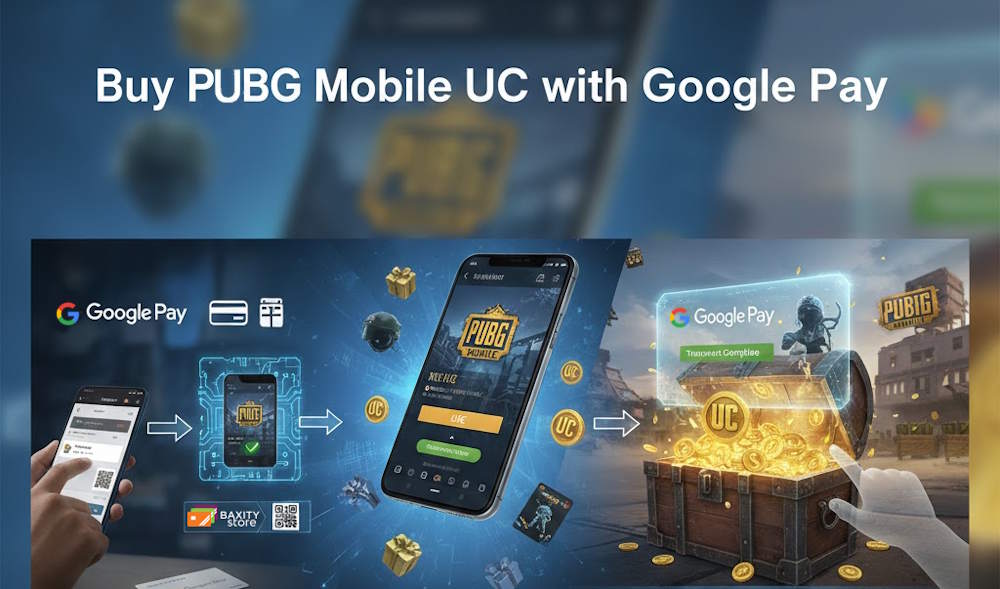
Why Choose Baxity Store for PUBG UC Purchases
When you use Google Pay for PUBG through Baxity Store, you stay in control. No surprises. No “technical maintenance” on Google Play right when you’re paying. No sudden verification requests in the middle of the night. A transaction via Google Pay for PUBG here takes minutes, not hours.
Here’s what makes this method better than direct in-game payment:
- Official vouchers— every code comes directly from authorized sources. No gray-market keys that could get your account banned.
- Instant delivery— the code hits your email seconds after payment. Even at 3 AM.
- 24/7 support— if something goes wrong, help is there. No automated replies, no templates.
- Codes work for any PUBGaccount — regardless of where it was created.
- Verification— only to protect your profile, not to create obstacles.
Who Benefits and Why You Should Try It Now
- For yourself, if you value your time.Want that limited skin disappearing in an hour? On Baxity Store, you’ll do it faster than finding the “top-up” section in game settings. Even at night, even without your physical card nearby — Google Pay remembers everything. You can buy PUBG UC with Google Pay online in 2 minutes, no issues.
- As a gift for a friend.A gift card for PUBG is the perfect present for anyone obsessed with the game. No size problems, no color dilemmas, no taste mismatches. Just a code they can redeem for exactly what they want.
- For your clan or squad.Play together regularly? Buy in bulk — 10+ cards at special prices. Each purchase with Google Pay for PUBG on Baxity Store costs less than topping up separately in-game. Distribute the codes, and everyone’s ready to play.
- For the budget-conscious.Baxity Store regularly runs promotions and discounts on popular UC amounts. Subscribe to the newsletter — be the first to know about sales. Save on your next purchase.
- For those who hate surprises.You pay exactly what you see on screen. No hidden fees, no “processing charges,” no currency conversion tricks.
How to Buy PUBG UC with Google Pay on Baxity Store
- Go to Baxity Store. Open baxity.com/store in your browser on your phone or computer. The website is mobile-friendly, so the checkout process works smoothly on any device.
- Select PUBG Mobile. In the catalog, open the PUBG Mobile category. On the product page, you will see the available UC denominations. Each option clearly shows the amount of in-game currency included, so you know exactly what you are purchasing.
- Choose Your UC Amount. Select the denomination that fits your goal — whether it’s unlocking Royale Pass, buying skins, or participating in limited-time events. Add the selected product to your cart.
- Register or Log In. To complete your purchase, you need to log into your account or create one. Registration takes less than a minute. A short verification process helps protect your account and ensures that the code is delivered securely to your email.
- Review Your Order at Checkout. Before proceeding with payment, double-check the selected UC amount and the total price. This step helps prevent mistakes and confirms you are purchasing the correct package.
- Select Google Pay as Your Payment Method. Choose Google Pay from the list of available payment options. You will be redirected to the secure Google Pay interface to complete the transaction.
- Confirm the Payment. Approve the transaction using your preferred confirmation method (biometric verification, PIN, or device confirmation). Once the payment is successful, the system processes your order automatically.
- Receive the Code by Email. After payment confirmation, your voucher code is sent to the email address linked to your account. In most cases, delivery takes only a few minutes.
- Redeem the Code in Game. Once you receive the code, you can immediately activate it in PUBG Mobile and add UC to your balance.
On average, the entire purchase process takes about 2–3 minutes from start to finish.
How to Redeem the Code in PUBG Mobile
- Open PUBG Mobile. Launch the game on your device and make sure you are logged into the correct account.
- Go to Settings. Tap the gear icon in the top right corner of the main screen.
- Find the “Redeem” Section. Locate the redemption option inside the settings menu.
- Enter your Player ID and the Code Exactly as Received. Copy the code from your email and paste it carefully. Pay attention to uppercase and lowercase letters.
- Confirm the Redemption. After confirmation, the UC will appear in your account balance instantly.
The redemption process takes less than a minute. No additional verification, no bank approvals, and no waiting — just enter the code and receive your UC immediately.
Security and Delivery
Every code from Baxity Store is official. No risk of invalid or stolen keys. The code arrives immediately after Google Pay confirms the transaction. If the email doesn’t show up in a few minutes, support is ready to help. Most issues get resolved within an hour.
Every PUBG purchase with Google Pay on Baxity Store is protected. Verification applies to buyers, not their money. No extra charges, no suspicious transactions. Just what you paid for.
Typical Issues When Paying via Google Pay
Even experienced players sometimes face problems when trying to pay PUBG with Google Pay. The transaction gets declined even though you have money on your card. Or payment fails due to regional restrictions. Let’s look at the most common errors and how to fix them.
| Problem | Why It Happens | How to Fix It |
| Verification error | Outdated or incomplete data in the application | Update your interface in Google Pay and complete verification again |
| Region mismatch | Your account was created for another country | Buy a voucher on Baxity Store — codes are not tied to any region |
| Google Play restrictions | Your country has limits on in-game payments | Use an alternative method such as a gift card |
| Transaction declined | Your bank flags the payment as suspicious | Contact your bank or try another payment method |
| Google Pay account limits | You have reached your daily transaction limit | Wait 24 hours or increase the limit in your settings |
Why These Errors Happen
When you try to buy PUBG with Google Pay, your payment goes through several systems. First, the application checks it. Then your bank reviews it. Then Google Play applies its regional rules. Any mismatch at any stage blocks the transaction.
The most common reason is region mismatch. If your account was created for the US but you’re physically in Europe, the system won’t let the payment through. No amount of tweaking settings will help.
How to Avoid These Problems
The simplest solution is to bypass this whole verification chain. When you buy a voucher on Baxity Store, you pay with Google Pay just once. No additional checks from Google Play. No region blocks.
What to do if you’re already facing issues:
- Check your settings — update your data in the Google Pay application.
- Complete verification again — add your card one more time.
- Contact your bank — they might be blocking game payments.
- Buy a PUBG UC gift card on Baxity Store — it takes 2 minutes.
No complicated setup, no calls to Google support. Just visit Baxity Store, pick your amount, and pay through the familiar Google Pay interface. The code arrives instantly.
Final Thoughts on Google Pay UC Purchases
Direct payment through Google Play works smoothly only under ideal conditions. Your account region must match your actual location, your bank must not block transactions, and Google must not have “technical maintenance” at the worst possible moment. If any of these fail, the skin you wanted stays in the shop and your money gets stuck for days.
A gift card gives you more control. You pay separately, you activate the code separately. No region dependence, no sudden declines. But only if you buy from a trusted place. On random sites, the risk of getting an invalid code or a banned account is too high.
Baxity Store is that trusted option. You buy a code with Google Pay, get it in your email in 2 minutes, and activate it in the game. Buying PUBG Mobile UC with Google Pay on Baxity Store is simple and predictable. No region locks, no waiting, no “try again later”.
New battle season? Limited rewards disappearing in an hour? All of it is available without extra hassle. You get access to the game exactly when you need it.
Want to buy UC without surprises? Go to Baxity Store, pick your amount, and get the code in 2 minutes.
FAQ
Why does my payment keep failing when I try to use Google Pay?
Failed payments usually happen for three reasons. First, your Google Play region might not match your actual location. Second, your bank could be blocking the transaction. Third, there might be a temporary issue with Google Pay payment for PUBG on Google’s side. Check your region settings first, then contact your bank if the problem continues.
Is it safe to buy PUBG UC through third-party websites?
It depends on the website. Trusted platforms like Baxity Store are completely safe — they provide official codes that work in any region. Random sites, however, may sell invalid codes or ones linked to fraudulent activity. If you want to avoid risks, stick to verified stores with good reviews and clear support policies.
What’s the difference between paying in-game and buying a gift card?
In-game payment is instant but depends on your Google Play region and bank approval. A gift card gives you more control. You buy the card separately, then activate the code whenever you want. This means no sudden declines, no region blocks, and no waiting. Plus, you can save the code for later or give it as a gift.
Can I use Google Pay on Baxity Store to buy PUBG UC?
Yes, Baxity Store accepts Google Pay for all purchases. When you pay for PUBG with Google Pay through Baxity Store, the process is simple: choose your UC amount, proceed to checkout, select Google Pay, and confirm the payment. The code arrives in your email within seconds, and you activate it in the game. No region restrictions, no hidden fees.
How do I redeem a PUBG UC gift card code?
Open PUBG Mobile, go to Settings, and find the “Redeem Code” section. Enter the code exactly as it appears in your email — it’s usually a combination of letters and numbers. Once confirmed, UC is added to your account immediately. You can redeem the code anytime, even months after buying it.
Can I buy PUBG UC with Google Pay directly in the game?
Yes, you can. The game uses Google Play Billing System, which supports Google Pay as a payment method. When you select UC in the PUBG Mobile store, the system offers available payment options. If your Google Pay is set up correctly, it will appear as one of them. Just confirm the payment, and UC is added to your account instantly.
What should I do if my code doesn’t work?
First, double-check that you entered it correctly — codes are case-sensitive. If it still doesn’t work, contact the store where you bought it. Reliable platforms like Baxity Store have 24/7 support and will sold your problem.